
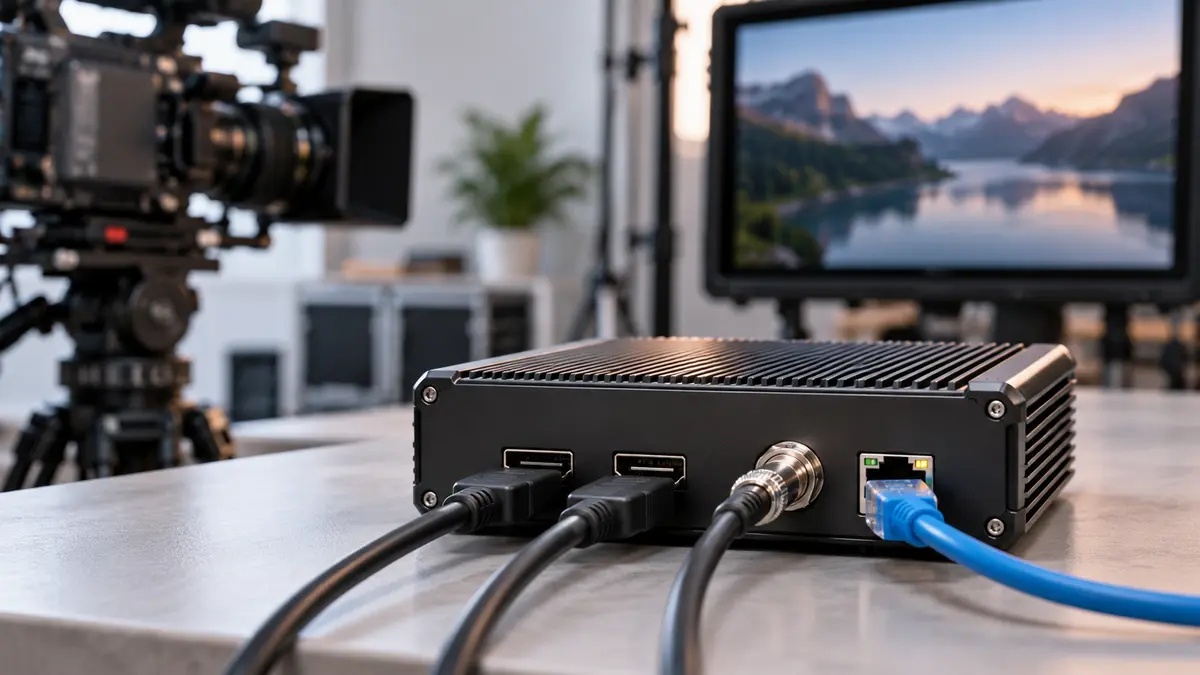
If you are asking what is the best IPTV encoder, start with the job you need it to do. Choosing the best IPTV encoder depends on the source, workflow, and delivery platform. For a simple single-camera or HDMI source, a compact appliance such as Magewell Ultra Encode HDMI is a practical shortlist candidate because it supports several common streaming outputs. For an HDMI and SDI production with picture-in-picture, Kiloview E3 is worth comparing. Broadcast teams with demanding contribution workflows may consider Haivision Makito X4, while OBS Studio can be a flexible software encoder when a computer is acceptable. These options serve different needs; no one model is best for every IPTV system.
This guide explains what an IPTV encoder does, compares four options using their manufacturers’ published information, and gives you a checklist for choosing what is the best IPTV encoder for your workflow. We have not lab-tested these products or verified every current firmware and regional variant. Confirm the current specifications, supported output protocol, licensing, and total system cost with the vendor before you buy.
What is the best IPTV encoder for your workflow?
For a straightforward HDMI-to-IPTV setup, start by checking Magewell Ultra Encode HDMI. For a mixed HDMI/SDI source or picture-in-picture workflow, compare Kiloview E3. For a professional contribution encoder with broadcast-oriented controls and 4K/HEVC options, assess Haivision Makito X4. If you already have a capable computer and want a configurable software workflow, OBS Studio is a sensible starting point. “Best” means the model that accepts your source, produces a stream your platform can ingest, and fits your operating and support requirements.
These recommendations are a feature-based shortlist, not a measured ranking. A hardware encoder cannot replace an IPTV headend, content rights, a packaging/origin service, a content delivery network (CDN), subscriber management, or a compatible player. Check the complete delivery chain before ordering equipment.
What does an IPTV encoder do?
An IPTV encoder converts a live audio-video signal into a compressed digital stream that can travel over an IP network. The source could be a camera, a video mixer, a satellite receiver you are authorized to use, a computer, or another professional source. The encoder samples the video and audio, applies a codec such as H.264/AVC or H.265/HEVC, and sends or hands off the result using a protocol accepted by the next part of the system.
In a managed IPTV workflow, the encoder is usually only one stage. A typical path is source → encoder → contribution or ingest network → transcoding or packaging → origin/CDN → middleware and subscriber authorization → player or set-top box. Some integrated platforms combine several stages. Before choosing an encoder, ask the platform operator which input and output formats it accepts.
HLS illustrates why the word “encoder” can be misleading. Apple describes HLS as delivery of media over HTTP using playlists and media segments, with a server or service that encodes and prepares the content, a distribution layer, and a playback client. A device that outputs a transport stream over UDP may therefore need a separate packager or gateway before it can serve HLS. Read the Apple HLS overview and match the encoder to the platform’s actual ingest requirements.
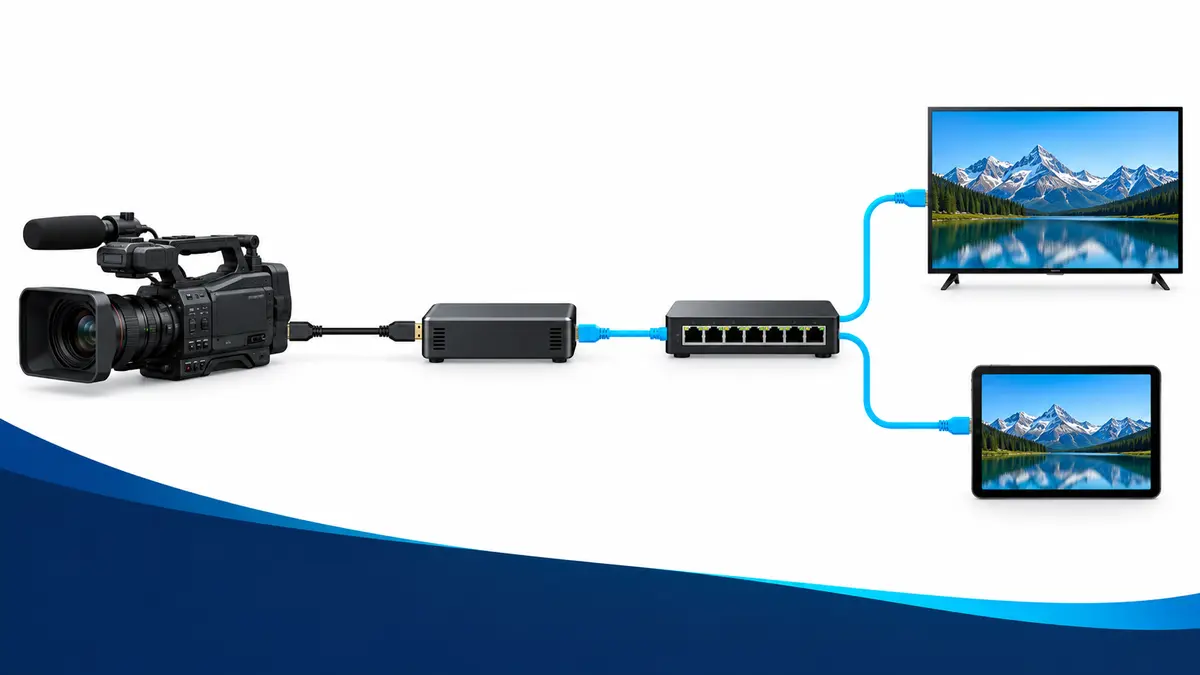
Encoder, transcoder, decoder, or IPTV box?
An encoder compresses an incoming signal and creates an encoded stream. A transcoder converts an existing encoded stream into another codec, bitrate, resolution, or profile, often to produce multiple playback renditions. A decoder turns an encoded stream back into video and audio for a display or downstream device. An IPTV set-top box is generally a receiver/player: it connects to a service and displays authorized channels. These devices may share features, but they are not interchangeable.
If your goal is watching an IPTV subscription on a television, you usually need a compatible player or set-top box, not an IPTV encoder. For help with playback devices, see the site’s IPTV installation guide. This is a separate viewer setup from building a live channel distribution system.
IPTV encoder options compared
The table is a starting point based on current manufacturer documentation reviewed for this guide. Product lines, firmware, regional models, supported codecs, and protocol combinations can change. Check a current data sheet and confirm support with the vendor for your exact source and platform.
| Option | Best fit | What to verify |
|---|---|---|
| Magewell Ultra Encode HDMI | Single HDMI source; compact appliance | Required resolution, output protocol, session limits, audio, and platform ingest |
| Kiloview E3 | HDMI/SDI production; mixed-source layouts | Input mode, PIP/PBP needs, codec, protocol, and exact model features |
| Haivision Makito X4 | Professional broadcast contribution | Required interfaces, channel count, 4K needs, licensing, and decoder compatibility |
| OBS Studio | Computer-based production or testing | Computer capacity, capture hardware, encoder settings, uptime, and ingest protocol |
Magewell Ultra Encode HDMI: a practical single-source choice
Magewell’s Ultra Encode HDMI is designed around an HDMI input and network streaming. The manufacturer lists H.264 and H.265 encoding and a range of outputs, including RTMP/RTMPS, SRT, RTSP, HLS, and MPEG-TS over UDP/RTP, with restrictions on which sessions can run together. It also lists support for high-resolution HDMI input. That makes it a useful candidate when you need a dedicated appliance and your platform accepts one of its supported outputs. See the official Ultra Encode HDMI specifications.
Before buying, confirm the maximum output resolution and frame rate for the specific codec and protocol you plan to use; input resolution alone does not prove that the device will encode and deliver that same format. Check whether the unit’s concurrent streaming limits suit your redundancy or distribution plan, and test audio routing and network behavior in your own environment.
Kiloview E3: compare it for flexible production sources
Kiloview describes E3 as a professional HDMI/3G-SDI encoder that can encode either source independently or combine them in picture-in-picture or picture-by-picture modes. That flexibility can help a production team that needs to show a camera feed alongside another authorized source. Review the manufacturer’s E3 product information for the exact inputs, codecs, output protocols, and supported operating modes available on the model you are considering.
Choose it only if those production features solve a real workflow need. If you have one HDMI source and no plan to switch or combine feeds, a simpler single-input device may be easier to deploy and support. Ask the vendor which features require optional modules, software, or firmware, and verify the output is accepted by your IPTV ingest platform.
Haivision Makito X4: a broadcast contribution candidate
Haivision documents the Makito X4 family for professional live-video encoding, with H.264/AVC and H.265/HEVC options and 4K-capable configurations. The documentation also describes controls for frame rate, GOP, bit rate, and other video parameters. The family is aimed at demanding contribution and broadcast workflows, so compare it when reliability, management, interface choices, and operational support matter more than a small upfront footprint. Start with the official Makito X4 product overview and the documentation for your exact model.
This category may be more equipment than a small creator or single-channel operator needs. Confirm the hardware variant, license, redundancy design, supported transport, and compatible receiver or decoder before purchase. Published capabilities are not a substitute for a test with your actual network and service platform.
OBS Studio: a configurable software encoder
OBS Studio is a software production and encoding application rather than a dedicated IPTV appliance. It can combine sources and send a stream to a compatible service, making it useful for testing, small productions, or a setup where an operator already uses a computer. OBS documents software encoding such as x264 and hardware encoders such as NVIDIA NVENC, AMD AMF, Intel Quick Sync, and Apple VideoToolbox on supported systems. Its hardware encoding guide explains the performance trade-offs.
A computer-based encoder can be economical and flexible, but it depends on the computer, capture card, drivers, operating system, and network remaining stable. It may need more hands-on maintenance than a dedicated appliance. Ensure the streaming output or plugin matches the IPTV platform’s ingest protocol; a normal streaming-platform preset is not automatically compatible with a headend.
How to choose the right IPTV encoder
1. Start with the source connector
List the devices you need to connect before comparing model names. HDMI is common for computers, cameras, and consumer equipment; SDI is common in production environments where cable runs and infrastructure differ. Check connector type, supported resolution and frame rate, embedded audio, and whether you need one input, multiple inputs, or a specific switching layout. An adapter changes the connector shape; it does not guarantee that signal format, copy protection, or audio will be supported.
2. Match the output protocol to your ingest
Ask your platform provider for its exact ingest requirements: protocol, address and port format, transport mode, encryption, authentication, codec profile, audio format, and whether it expects one stream or an adaptive-bitrate ladder. SRT or RTMP may be suitable for contribution into a platform, while HLS is commonly used for HTTP-based playback delivery. MPEG-TS over UDP/RTP may suit a controlled network or a specific headend. These protocols solve different parts of the path and should not be selected by name alone.
If you need low latency, test the entire chain. A low-latency output setting on an encoder cannot remove delays added by buffering, transcoding, packaging, CDN distribution, or player behavior. Measure end-to-end latency with the intended receiver and network.
3. Choose a codec your viewers and platform support
H.264 remains a common compatibility choice for mixed devices. H.265/HEVC can be attractive when supported by the source, platform, licensing arrangement, network, and all intended playback devices. A newer codec is not automatically better if client support is uneven or the IPTV platform must transcode it again. Use the platform operator’s supported profiles and test on representative TVs, set-top boxes, phones, and browsers.
4. Size resolution, frame rate, and bitrate together
Higher resolution and frame rate require more encoding capacity and network bandwidth, but simply selecting the maximum can cause dropped frames or instability. Set a target from the viewing use case and available upload capacity. Leave network headroom for protocol overhead and other traffic, and test during busy periods. The OBS guide notes that bitrate depends on upload speed and the limits of the receiving service; the same principle applies to hardware encoding.
For a commercial channel, use a stable wired connection where possible, monitor packet loss and encoder temperature, and consider a backup path. If the viewer platform needs multiple quality levels, ask whether the encoder should produce a single contribution feed for cloud transcoding or several renditions locally.
5. Compare operations, not only the spec sheet
Check remote management, monitoring, alerting, configuration backup, firmware support, warranty, replacement availability, power and cooling, and how the device recovers after an outage. For a multi-channel system, confirm the number of independent encoding channels and whether each channel needs a separate license or module. Include capture cards, converters, rack space, network switches, transcoders, packagers, and support in the total cost.
A safe setup checklist before going live
- Confirm you own or have permission to distribute the source content and that the source device permits capture. Do not try to bypass HDCP or other access controls; use an authorized unprotected output or obtain the appropriate distribution feed.
- Verify the encoder’s input format and output protocol against the platform’s written requirements.
- Set codec, resolution, frame rate, audio format, and bitrate to supported values; start conservatively and test.
- Run a private test stream and inspect picture, audio sync, captions if used, aspect ratio, and continuity on target player devices.
- Monitor network loss, temperature, CPU or hardware load, and end-to-end delay. Test reconnect and recovery behavior.
- Document settings, credentials storage, firmware version, support contacts, and rollback steps before production.
So, what is the best IPTV encoder?
For many single-source HDMI workflows, Magewell Ultra Encode HDMI is a strong first device to evaluate when asking what is the best IPTV encoder because its published specifications combine an HDMI input with several streaming outputs. Kiloview E3 is a better fit to compare when HDMI/SDI flexibility or picture-in-picture matters. Haivision Makito X4 belongs on a shortlist for professional contribution requirements. OBS is a practical software route when a computer-based workflow is acceptable. The right choice is the one confirmed to work with your source and ingest platform, not the product with the longest feature list.
The guide is based on manufacturers’ documentation and the OBS project’s published guidance, not independent product testing. Product capabilities change, and an IPTV encoder alone does not provide channel rights, subscriber management, content protection, or a complete streaming service. If you are looking for help watching an IPTV service on your own device, use the Xtreme HD IPTV installation guide instead of purchasing broadcast encoding equipment.
Frequently asked questions
What is the best IPTV encoder used for in a live workflow?
An IPTV encoder compresses live audio and video from an authorized source and sends it over an IP network in a format accepted by an IPTV platform or headend. It is one component of a larger system that may also need transcoding, packaging, distribution, subscriber access control, and a player.
Can I use OBS as an IPTV encoder?
Yes, for a computer-based workflow, if the capture hardware and OBS output are compatible with the IPTV platform’s ingest requirements. OBS is flexible for production and testing, while a dedicated appliance may be easier to deploy for an unattended source. Test uptime, reconnects, and output compatibility before relying on it for a live channel.
Is an IPTV encoder the same as an IPTV box?
No. An encoder creates a compressed IP stream from a source signal. An IPTV box normally receives and plays a stream from a service. If you only want to watch channels, you typically need a supported app or player device rather than an encoder.
Do I need HLS or MPEG-TS?
It depends on the platform. HLS uses HTTP delivery with playlists and media segments; MPEG-TS over UDP/RTP is often used in controlled contribution or headend networks. Ask your IPTV platform which ingest format it accepts. An encoder may require a packager or gateway to convert one format into another.
Should I choose H.264 or H.265 for IPTV?
Choose a codec supported by your platform and every target playback device. H.264 is a common compatibility baseline; H.265 may be useful in supported workflows. Confirm codec profiles, licensing, hardware decode support, and whether the platform will transcode the stream.
Can an IPTV encoder capture any HDMI source?
No. Input compatibility, resolution, audio format, and copy-protection rules can limit capture. Only encode content you own or are licensed to distribute. Do not bypass HDCP or other access controls; request an authorized production or distribution feed when required.
Conclusion
To decide what is the best IPTV encoder for your setup, compare your source, ingest protocol, codec, scale, and support needs. Match those requirements first, then shortlist the simplest hardware or software option that meets them. Verify the exact model with the platform provider, run a private end-to-end test, and confirm the legal rights to distribute the content before going live.