
Quick answer: You cannot turn an HDMI cable directly into an IPTV service with a simple adapter. HDMI carries audio and video from a source device to a display. IPTV delivers television or video over an internet protocol (IP) network. To send an HDMI source across an IP network, you need an HDMI encoder or a compatible AV-over-IP system. To watch an IPTV service on a TV that has an HDMI port, you usually need an IPTV-compatible app or streaming device connected to that port.
If you searched for how to convert HDMI to IPTV, first identify which of two goals you have: watching an IPTV service on a TV, or sending an HDMI source over a local network. One is streaming a device’s HDMI output to other screens on a local network. The other is watching IPTV on a television that only has HDMI inputs. The equipment and setup are different. This guide explains both, helps you avoid buying the wrong converter, and covers the limits you should check before you connect anything.
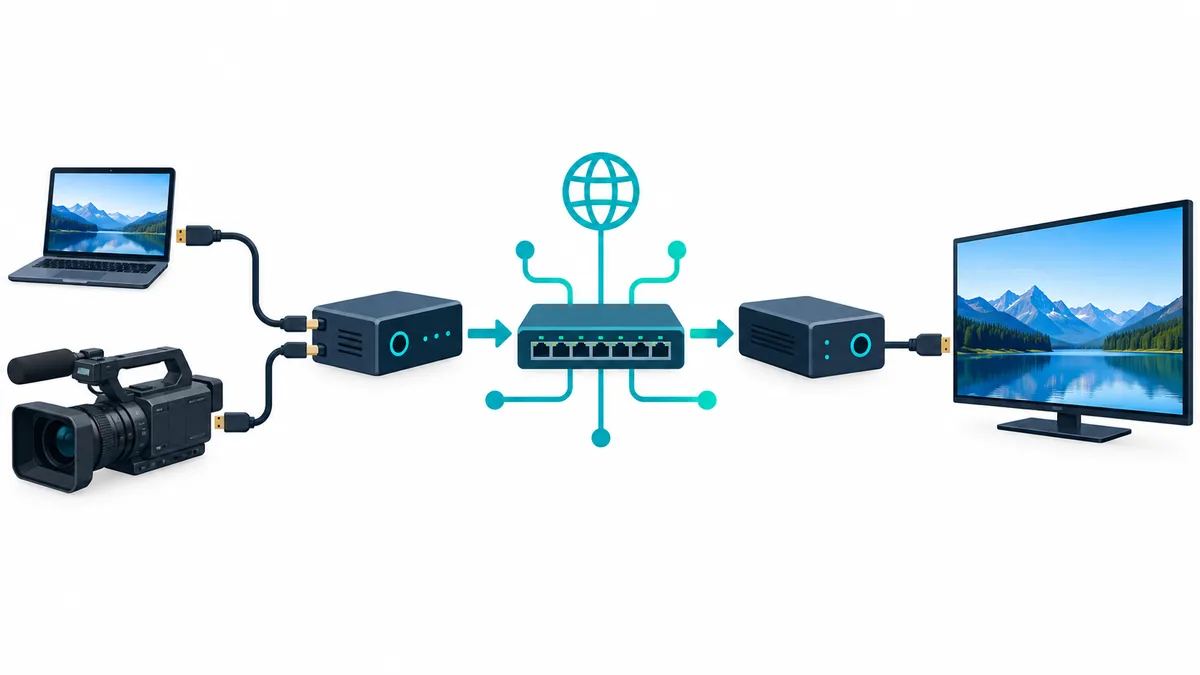
What do HDMI and IPTV mean?
HDMI is a digital interface for carrying audio and video between devices, such as a laptop, game console, camera, cable box, or media player and a television or monitor. An HDMI cable does not provide television channels or an internet connection. It transports the signal produced by the connected source.
IPTV means television or video delivered using Internet Protocol networks. In a consumer setup, an IPTV app or set-top box receives a stream over a network connection and displays it on a screen. The screen may receive the final picture through HDMI, but the program arrived over the network first.
A useful way to picture the difference is to follow the signal:
- HDMI path: video source → HDMI cable → display.
- IPTV viewing path: IPTV provider or media server → internet or local IP network → IPTV app or receiver → HDMI cable → display.
- HDMI-to-IP streaming path: HDMI source → encoder → IP network → compatible decoder or player → display.
HDMI is therefore often part of an IPTV viewing setup, but an HDMI cable by itself does not convert a source into an IPTV channel.
How to Convert HDMI to IPTV: Choose the Right Setup
| Your goal | What you usually need | What the setup does |
|---|---|---|
| Watch an IPTV subscription on a TV | Compatible smart-TV app or supported streaming box | The app receives the IPTV stream over the network; HDMI connects the box to the TV when required. |
| Send a camera, computer, or other HDMI source to another room | HDMI-over-IP encoder and a compatible receiver, or an AV-over-IP system | The encoder compresses or packetizes the input for network transport; a receiver decodes it for a display. |
| Share one HDMI source on several displays | AV-over-IP system designed for multi-screen distribution | Routes a source across a managed network to one or more endpoints. |
| Turn a protected streaming-app picture into a channel | Often not supported; check content rights and device restrictions | Copy protection may block capture or redistribution. Do not attempt to bypass it. |
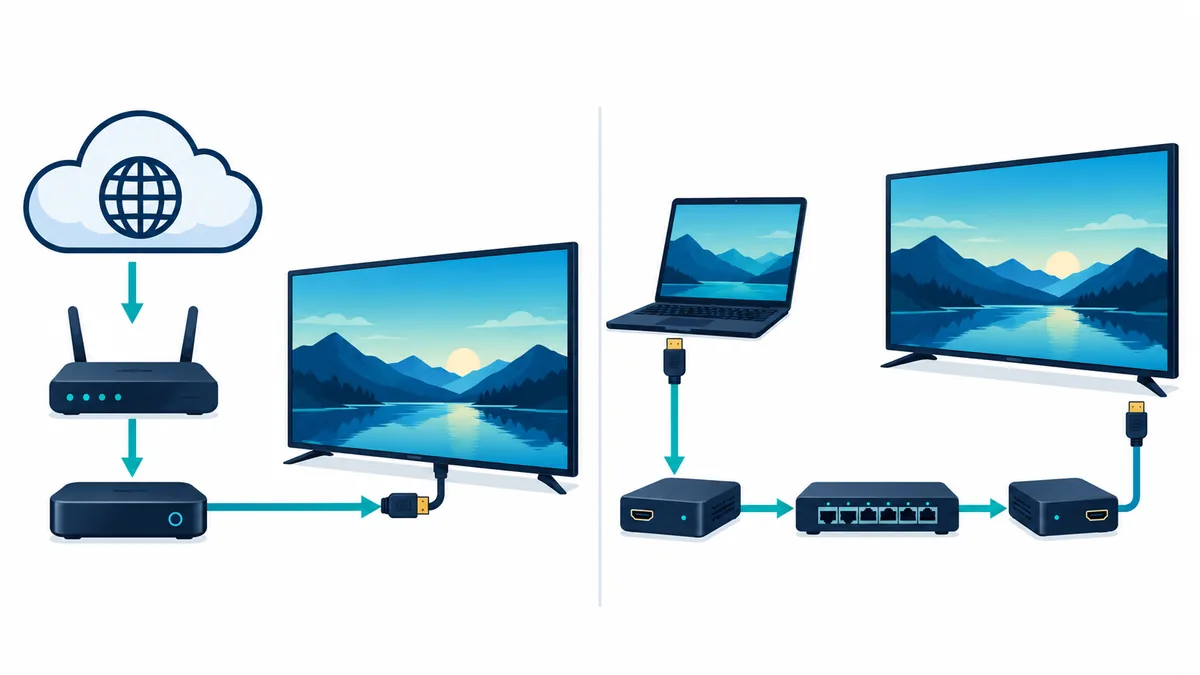
Option 1: Watch IPTV on a TV with an HDMI port
If your goal is simply to watch an IPTV service on a television, you probably do not need an HDMI encoder. Use the TV’s own compatible IPTV application if the service supports it, or connect a supported streaming device or set-top box to an HDMI input. The app or box receives the stream over Wi-Fi or Ethernet. HDMI only carries the resulting picture and sound from the device to the television.
Basic setup steps
- Check which IPTV apps or devices your provider supports. Confirm the exact app name and setup instructions with the provider.
- Connect the television and streaming device to power. Connect the device to an available HDMI input on the TV.
- Select that HDMI input on the television using the remote’s Input or Source button.
- Connect the streaming device to your network. Ethernet is a useful first choice when available; otherwise, use a stable Wi-Fi connection.
- Install or open the supported app and enter only the service details supplied by your provider. Do not share account credentials with unofficial apps or websites.
- Test a live stream and on-demand playback. If either fails, check the network, app, device compatibility, and provider setup instructions.
For an Xtreme HD IPTV device walkthrough, see our installation guide. Review the current subscription plans and service terms before purchasing. App availability and menus can change, so follow the current instructions for your specific television or streaming device.
Option 2: Stream an HDMI source over a local IP network
If you want to send a camera, computer, presentation system, or other HDMI source through an Ethernet network, an HDMI encoder may be appropriate. The encoder accepts HDMI video and audio, converts it into a network stream, and sends it across a local network. A compatible decoder or software player at the receiving end turns that stream back into a signal a display can use.
This type of system is often described as HDMI over IP or AV over IP. It is not necessarily the same thing as a public IPTV service. A local AV-over-IP installation may be designed for a home, classroom, venue, control room, or business network. A public IPTV service involves distribution infrastructure, streaming formats, account or access control, and rights to distribute the programming.
Typical encoder and receiver setup
- Identify the source. Check its HDMI output resolution, frame rate, audio format, and whether it uses HDCP copy protection.
- Choose a compatible encoder. Match the encoder’s input and supported output protocols to the receiver or software you plan to use. Read the manufacturer’s compatibility documentation before buying.
- Plan the network. Confirm that switches, cabling, bandwidth, and multicast or VLAN settings meet the equipment requirements. Some systems require managed network hardware and careful configuration.
- Connect the source. Use a suitable HDMI cable from the source to the encoder. If the source is a laptop or camera, confirm that it can output the selected resolution.
- Connect the encoder to the network. Use the specified Ethernet port and follow the manufacturer’s instructions for addressing, stream settings, and security.
- Configure the receiver. Connect a compatible decoder to the network and to the destination screen, often by HDMI. Pair it with the correct stream.
- Test picture, sound, and latency. Try the actual content and viewing conditions you expect. Adjust resolution or bitrate only within the supported limits of each device and the network.
For a single source and single nearby TV, an ordinary HDMI cable may be simpler and less expensive. For sending a source over long distances, between rooms, or to multiple endpoints, compare an HDMI-over-IP system with other purpose-built AV distribution options.
What to check before buying an HDMI-to-IPTV converter
“HDMI to IPTV converter” is a broad shopping phrase, not a guarantee that two products will work together. Check the product documentation for the following details:
- Input and output: Does it accept HDMI and output the stream format your receiver supports?
- End-to-end compatibility: Is a matching decoder required? Can a software player receive the stream?
- Resolution and frame rate: Are the source, encoder, receiver, and display compatible at the setting you plan to use?
- Audio: Does the equipment support the audio format your source sends?
- Network requirements: What bandwidth, Ethernet speed, switch features, multicast configuration, or VLAN setup is required?
- Latency: Is the delay acceptable for live viewing, monitoring, gaming, or presentations? Encoding and network transport can introduce delay.
- Copy protection: Does the source use HDCP? Protected content may not be available for capture, conversion, or redistribution.
- Licensing and permissions: Do you have the rights to capture and distribute the video to the intended viewers?
- Security: Can streams be restricted to authorized users and devices? Avoid exposing a private stream directly to the public internet without appropriate security.
Do not rely on a seller’s use of “IPTV” in a product title alone. Look for a clear specification sheet, the supported stream protocols, the required receiver, and the manufacturer’s setup guide.
Common problems and practical fixes
There is no picture
Confirm the TV is on the correct HDMI input, then check that the source is powered and set to a resolution supported by the display and encoder. Reseat both ends of the HDMI cable. If the source is protected, check the device and encoder documentation for HDCP compatibility rather than trying to bypass protection.
The video stutters or drops
Test the network connection between the encoder and receiver. Avoid diagnosing the problem by changing several settings at once. Check network load, switch capacity, cable quality, and the encoder’s bitrate requirements. If the manufacturer recommends a dedicated or managed network configuration, follow it.
The picture works but there is no audio
Check whether the source, encoder, decoder, and display support the same audio format. Try a standard supported output format on the source, then verify audio settings at the receiver and display.
The stream has noticeable delay
Encoding, buffering, network congestion, and decoding can all add latency. Compare the measured delay with the system’s intended use and product specifications. A setup suitable for signage may not be suitable for interactive gaming or lip-synced monitoring.
An IPTV app does not appear on the TV
Smart-TV app availability varies by manufacturer, model, region, and operating system. Check the TV’s app store and the provider’s supported-device list. If the app is unavailable, a supported streaming device connected to HDMI may be a simpler route.
Example: choosing the right setup
Illustrative example: A small training room needs to show a laptop presentation on a television in the next room. The laptop has HDMI output, but the rooms are separated by a long cable route. The team first confirms that a direct HDMI run is impractical, then checks whether a matched HDMI-over-IP encoder and receiver support the laptop’s resolution and the available network switch. They test a short presentation, confirm audio and delay are acceptable, and restrict access to the local network. This is an AV distribution project; it does not require an IPTV subscription.
Now consider a viewer who wants to watch an IPTV subscription on a television. The simpler setup is a supported app on the TV or a compatible streaming box. The network delivers the IPTV stream to the app or box, and HDMI connects the box to the screen. Buying an HDMI encoder for that purpose would add unnecessary complexity.
Frequently asked questions
Can I convert HDMI to IPTV with a cable?
No. A cable can carry HDMI between compatible devices, but it does not encode the signal as a network stream. Sending HDMI video over IP requires compatible encoder and receiver equipment or a purpose-built AV-over-IP system.
Can I watch IPTV through an HDMI port?
Yes. Connect a supported IPTV streaming device or set-top box to the TV’s HDMI port, then connect that device to the internet and use a compatible app. HDMI carries the picture from the device to the television.
Is HDMI over IP the same as IPTV?
Not always. HDMI over IP usually describes distributing an HDMI source across a local network. IPTV usually describes television or video delivered over an IP network. The terms can overlap in commercial AV systems, so check the equipment’s exact protocol and use case.
Can an HDMI encoder make a TV channel?
An encoder can turn a compatible HDMI input into a network stream, but that alone does not create a complete public TV channel or subscription service. Distribution, receivers, access control, network capacity, and content rights may also be required.
Can I convert a streaming stick’s HDMI output and rebroadcast it?
Do not assume this is supported. Streaming devices and services may use copy protection, and service terms or copyright rules may prohibit capture or redistribution. Check the rights and technical restrictions before attempting any rebroadcast.
Will an HDMI-to-IP encoder work over Wi-Fi?
Some products may support wireless links, but many professional AV-over-IP systems expect a wired Ethernet network with specified bandwidth and switch features. Follow the exact manufacturer requirements and test performance under real network conditions.
What is the easiest way to get IPTV on an older TV?
Use a compatible streaming device or IPTV set-top box with an HDMI output, provided the TV has a working HDMI input. Connect the device to the internet, install a supported app, and follow the provider’s setup instructions.
Conclusion
When people ask how to convert HDMI to IPTV, they may mean either sending an HDMI source over a network or watching an IPTV service on a television. An HDMI cable does not perform the conversion. For network distribution, investigate a compatible encoder-and-receiver system and check network, latency, copy protection, and content rights. For ordinary IPTV viewing, use a supported app or streaming device connected to the TV by HDMI.
Start by identifying which of those two jobs you need to do. Then confirm device compatibility before buying hardware. If you are setting up an Xtreme HD IPTV-compatible device, use our step-by-step installation guide, or contact support if you need help with the service setup.